Rehearse lines with AI: what a run-lines app does
“Rehearse lines with AI” sounds like a virtual co-star. In practice, a run-lines app does three plain things: it speaks the other parts, it listens to yours, and it tells you how close you were to the text. This page explains what to expect from any run-lines app, how to choose between a Step-by-step and a Fluid session, how to prepare your script so the machine reads it correctly, and where the tool stops being useful.
What “AI” means in a run-lines app
Strip away the word “AI” and a run-lines app is two technologies glued to a script. Text-to-speech reads the cues. Speech recognition turns what you say into text, and the app compares that text with the line on the page. Everything else (the score, the review, the color of a badge) comes from that comparison.
So the useful question is not “how smart is it?” but “how well does it do those two jobs, and what does it do with the gap?” A good run-lines app should:
- Give you the cue at the right moment, not the whole scene as an audiobook. The silence where your line goes is the whole exercise.
- Hide your line (in MasteringTheatre, Hide my lines) until you have said it, so you are recalling, not reading.
- Score words, not acting. A percentage tells you whether the text came out; it says nothing about whether the scene worked.
- Show you what you dropped, word by word, after the line or after the scene, so the next pass targets the weak spots instead of the whole page.
For a feature-by-feature description of one such tool, see what an AI scene partner does.
Step-by-step or Fluid: two ways to run a scene
Most of the decisions you make with a run-lines app come down to one question: who decides when your line is over? You, or the silence?
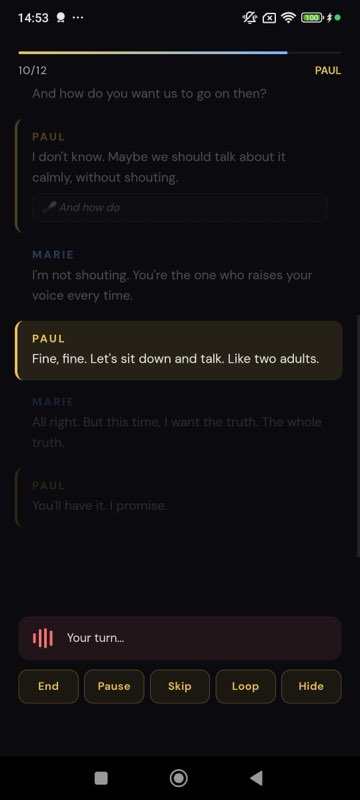
Step-by-step. The app speaks the cue, listens, and waits. You decide when you are done by tapping Validate (or tapping your own line). Nothing moves until you say so. This is the mode for learning: you can stop, breathe, try the line again in your head, and only then commit.
Fluid. The app speaks the cue, listens, and moves on by itself once you have been silent for a set time. The scene runs without touching the screen. This is the mode for pace: it trains you to pick up cues the way a scene partner will, without the comfort of a pause button.
They train different things, so use them at different stages:
- First days on a scene: Step-by-step. You are still building the chain of cue and response. Go line by line, and when a line scores low, say it again before you validate the next one.
- Once you can get through without the script: Fluid with a long silence. Start generous, so that thinking time does not end your turn. You are now testing recall under a gentle clock.
- The week before you are off book: Fluid with a short silence. Tighten the delay until the scene runs at something close to playing speed. Cue pickup is a skill of its own, and this is where it gets trained.
A practical warning about Fluid mode in any app: the machine cannot tell a dramatic pause from a dry. If you hold a beat longer than the silence setting, the app takes it as the end of your line. When you rehearse pauses on purpose, lengthen the delay or switch back to Step-by-step for that scene.
In MasteringTheatre, Step-by-step is available on every plan, including the free one. Fluid mode, with a silence delay from 0.5 to 10 seconds (2 seconds by default), is part of Pro and Premium. To use it, switch the role screen to Advanced mode, then choose Fluid.
Prepare the script so the machine reads it right
Half of the frustration with run-lines apps comes from the script, not the software. An app has to guess who says what, and a messy PDF makes it guess wrong. A few minutes of cleanup pay for themselves:
- One format for character names. Name, colon, line: MARIA: You said you would call. In MasteringTheatre, a name in capitals followed by a colon is recognized as a character; a name in mixed case is kept only if it comes back at least twice, so a stray “Note:” does not become a role.
- Stage directions in parentheses after the name, as in MARIA (turning away): Go, then. They are shown at the top of the line but not read aloud.
- Mark scene breaks with a heading such as “SCENE 2” or a line of dashes, so one character's last speech does not run into the next scene.
- Verse is fine. Broken lines of verse are attached to the speech they belong to, so a sonnet-shaped speech stays one line to learn.
- Import only the scene you are working on. On the free plan one import holds up to 5,000 characters.
How to read the score
Each line gets a percentage. In MasteringTheatre, 85 % and above is green, 70 % and above is gold, and anything lower is red. During the scene you see the words it heard, then the badge; the words you missed or changed are highlighted in the review at the end.
Three habits make the number worth having:
- Read the review, not the average. One red line in a green scene is the line to drill. A gold score on a long speech often hides a single missing clause; find it.
- Know the strictness. Sound-alike words always pass, and close-sounding ones pass on Lenient and Normal. Only Strict refuses them. If your director is a stickler for the exact text, rehearse on Strict (Pro and Premium; the free plan always scores on Lenient).
- Watch word order. A word said in the wrong place counts as missing where it belonged and added where you put it (on lines of up to 150 words).
For turning low-scoring lines into a memory routine, the method in cue-based memorization pairs well with this review.
The limits, honestly
- It does not act with you. The partner never interrupts, never corrects you aloud and has no emotion setting. It reads the same way whether you whisper or shout.
- It listens in one language at a time: the app's. Recognition and the phone voice follow the language set in the app, not the language of the script. An English scene with the app set to French is heard as French. Set the app to the scene's language first.
- It does not film you. There is no self-tape mode.
- It does not loop a passage. To hammer one exchange, select just that passage (Edit selected lines, then two taps) and, in Step-by-step mode, use Repeat after a weak line.
- It cannot see your blocking. Movement, props and timing with other bodies on stage still need a real rehearsal room.
A run-lines app takes the text off the table so that rehearsal time with people goes into the acting. Without an app, the same principles (hidden line, cue at the right moment, check against the page) work with a recorder or a patient friend; the five low-tech and high-tech options are in how to run lines alone.
A 15-minute AI rehearsal session
- 2 min: import one scene, check that every character was detected and that you picked your role.
- 5 min: one pass in Step-by-step. Do not look at the script.
- 3 min: open the review, read the red and gold lines aloud three times each, from the page.
- 5 min: one more pass, Fluid if you have it, Step-by-step again if not. Compare the review with the first one.
Questions about rehearsing lines with AI
Can I rehearse lines with AI for free?
Yes: the free plan covers Step-by-step rehearsal with the phone's voice, at no energy (⚡) cost; details in what an AI scene partner does.
Which mode should a beginner use?
Step-by-step. You control when each line ends, so you can recall without a clock running. Move to Fluid once you can get through the scene without the script.
Why did Fluid mode cut me off mid-line?
Because you paused longer than the silence delay, and the app read that silence as the end of your line. Lengthen the delay, or rehearse scenes with long pauses in Step-by-step.
Does the app need the internet to listen?
Speech recognition runs on the phone, but the voice model is downloaded once per language before you can use it. After that, listening does not depend on a connection.
Does a high score mean the scene is ready?
It means the words are there. Whether the scene works (intention, listening, pace) is a question for your partner, your director and your own judgment.
Can it rehearse a scene in another language?
Yes, if you set the app's language to the scene's language first: the app does not detect the language of the text.
Import one page. Run one line. See a % score.
Free plan, no card. Android (10 languages) and iOS (5 languages). Pro and Premium: monthly, price shown in the store.

This page describes the app as it was on 2026-11-21. A score measures text accuracy, not talent. Published 2026-11-21.