How to format a script so a line-learning app reads it
A line-learning app has to decide, for every line of text, who is speaking. Give it one speech per line, the character's name in capitals, a colon, then the words. Keep stage directions in brackets after the colon and delete everything else: page numbers, headers, directions on their own line. Most import problems come from those few rules.
Short answer
Write NAME: line, one speech per line, the name in capitals with no digits, and keep each character's name spelled the same way every time. Put stage directions in brackets after the colon. In MasteringTheatre, pasting and text PDFs are free up to 5,000 characters; photos, scanned PDFs and AI cleanup need Pro.
Why apps misread scripts
A printed script is laid out for eyes, not for software. The name may sit centred above the speech, a speech may wrap over six lines, a page break may drop a page number into the middle of a sentence, and stage directions float between speeches. You see the structure at a glance; an app has to rebuild it from raw characters. When it guesses wrong, a speech goes to the wrong character, two speeches merge, or a line disappears. The fix is to remove the guessing.
The format MasteringTheatre reads
These rules come from the app's import code (Android and iOS share it), not from a help page.
- One speech per line:
NAME: text. A space before the colon is fine (HAMLET : To be…). - The name in capitals. Letters, spaces, full stops, apostrophes and hyphens are accepted:
LADY MACBETH,MRS. ALVING,D'ARTAGNAN,MARY-JANE. Up to about 30 characters. - No digits in names.
GUARD 2:is not read as a new speech. WriteSECOND GUARD:orGUARD TWO:. - A colon, not a dash.
Juliet: O Romeo(lower case) andHAMLET - To be(dash) are not split into new speeches. - Stage directions inside the speech, in brackets, after the colon.
ALICE: (sitting down) You're late.The partner voice does not read the bracketed words and your score ignores them. A bracket before the colon, as inALICE (entering):, stops the line being recognised. - Directions on their own line: delete them. The app either ignores them or glues them onto the speech above.
- Scene headings: optional. A line such as
SCENE 2, or a row of dashes---, becomes a section you can tap to select that scene. Other headings are ignored or, like stray directions, glued to the speech above; delete them. - One spelling per character.
KINGandTHE KINGare two characters for the app.
The verse trap
If a speech wraps onto several lines, the app joins a following line to the speech above only when that speech does not yet end with a full stop, question mark, exclamation mark or closing quote (» or "), and when the line does not start with a word in capitals. Otherwise a line with no name is dropped. In verse, where a sentence often ends mid-speech, that silently loses lines. Two safe layouts: the whole speech on one line, or one beat per line with the name repeated each time. The second gives you a score per beat, which is the layout our monologue guide recommends.
Before and after
SCENE 2
ALICE: You can't keep going like this,
Victor. It's been three weeks.
You haven't called once.
Victor — I'm not avoiding anything.
(silence)
ALICE: Really?
VICTOR (turning): Really.
Pasted like this, the “Validate lines” button stays grey: only three of the eight lines look like NAME: text. Even past that check, the app would find two speeches, both Alice's: “You haven't called once.” is dropped (the verse trap), Victor's first line has a dash, his second a bracket before the colon. The same scene, formatted:
SCENE 2
ALICE: You can't keep going like this, Victor. It's been three weeks. You haven't called once.
VICTOR: I'm not avoiding anything.
ALICE: (after a silence) Really?
VICTOR: (turning) Really.
Getting the text in: paste, file or photo
| Source | What happens | Plan |
|---|---|---|
| Paste or type | The text goes into the import box as it is. | All plans |
| TXT file | Read as plain text. | All plans |
| PDF with selectable text | Text extracted on the phone, nothing sent anywhere. | All plans |
| Scanned PDF (image only) | Sent to text recognition (OCR). | Pro, Premium |
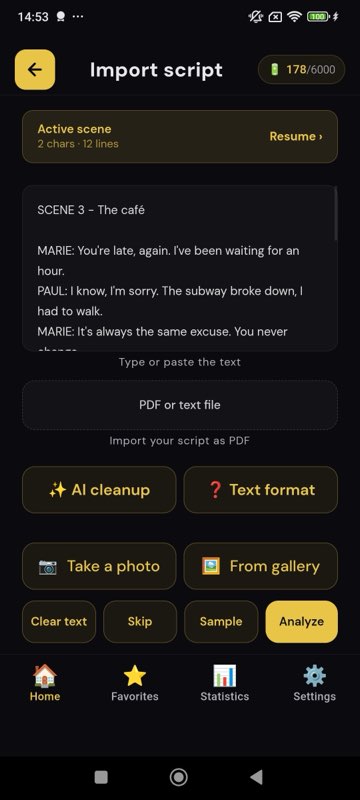
| Photos of pages | Up to 6 photos per batch, camera or gallery; the text is added after what is already in the box, so you can scan a long script in batches. | Pro, Premium |
| AI cleanup | Rewrites the layout into NAME: line, rejoins broken lines, keeps directions in brackets inside speeches, removes directions that stand alone; instructed never to change your words. | Pro, Premium |
Length limit: 5,000 characters per import on the free plan, 100,000 on Pro and Premium. OCR and AI cleanup cost no energy. The file picker accepts .txt and .pdf only; save a Word document as PDF or plain text first. To test a PDF, try to select a sentence with your finger or mouse: if you can, the app can read it without OCR.
Free plan: the manual route
Without Pro you format by hand or with any general-purpose AI chat. Our free-plan tips page has a prompt to copy: paste your scene under it, ask for the result, check it, and paste that into the app. For a scanned page, ask the same chat to transcribe the photo first, then format the transcript. Check names and line breaks before you import; a chatbot can also “correct” words you meant to keep, so compare it with the original.
Check before the first run
- “Validate lines” greyed out: fewer than half of the non-empty lines look like
NAME: text. Fix the layout, or run AI cleanup on Pro. - “No lines detected”: no line has a capitalised name followed by a colon.
- Count the characters on the role screen. An extra character usually means two spellings of one name; a missing one usually means a lower-case or numbered name.
- Scroll your own speeches once. A speech that stops mid-sentence is the verse trap above.
Advice that works with most apps
We cannot vouch for how other apps parse text; their makers document their own formats, and some list screenplay formats such as Fountain or Final Draft. These habits help whatever you use:
- Keep a clean master copy in plain text. Re-importing from it is faster than fixing a bad import.
- Remove page numbers, running headers, and screenplay markers such as
(CONT'D),(MORE)andCONTINUED. - One speaker, one paragraph, the name written identically every time.
- Prefer a PDF with real text to a scan, and a flat, well-lit photo to an angled one.
- Cut to the pages you are working on. A shorter import is quicker to check.
- Look at what the app detected before you rehearse: names, number of speeches, the end of your longest speech.
What MasteringTheatre does not do
- No import of Word (.doc, .docx), Fountain or Final Draft files.
- No photo or scanned-PDF import on the free plan.
- No automatic repair of the layout on the free plan: lower-case names, dashes or numbered names have to be fixed by you.
Formatting questions
Do character names have to be in capitals?
In MasteringTheatre, yes. A speech is recognised when the line starts with a name in capitals followed by a colon. “Juliet:” in lower case is not split into a new speech; write “JULIET:”.
What do I do with stage directions?
Keep the ones you need inside the speech, in brackets, after the colon. The partner voice skips them and the score ignores them. Delete directions that sit on their own line.
Can I import my sides as a PDF?
Yes, on every plan, if the PDF contains selectable text; it is read on the phone. A scanned PDF needs text recognition, which is on Pro and Premium. The free plan accepts up to 5,000 characters per import.
How do I format a monologue?
Split it into beats of one to three sentences and put each beat on its own line, starting with the character's name and a colon. Each beat is then scored separately, and no verse line is dropped.
Why does a character appear twice on the role screen?
The name is spelled two ways in the text, for example KING and THE KING, or with a stray full stop. Make every occurrence identical and import again.
Import one page. Run one line. See a % score.
Free plan, no card. Android (10 languages) and iOS (5 languages). Pro 2.99 €/month, Premium 4.99 €/month.
Get the app →This page describes the app as it was on 2026-10-07. A score measures text accuracy, not talent. Published 2026-10-06 · updated 2026-10-07.